
Your handwriting, your page
Put your handwriting on any page you upload
Snap a photo of your notebook or a form, type what goes on it, and drag your handwriting into place. Download one image that looks like you sat there and filled it in, no printing involved.
A free account is needed to upload your own background pages.
Handwriting on any page with ScribbleSync, at a glance
ScribbleSync places your own handwriting on any page you upload. You upload a photo or scan, type your text, position it, and download one finished image.
- →ScribbleSync writes on any background image you upload, including notebook photos, scanned forms, and worksheets.
- →You draw your letters once, then type the text you want to place on the page.
- →You drag, zoom, and rotate the handwriting to line it up with the page.
- →Only your ink shows, so the lines and fields underneath stay visible.
- →You download one PNG with the background and handwriting merged. A free account is required to upload a background.
What people actually upload
If you can photograph it, you can write on it.
Your own notebook
Photograph any page in your notebook and upload it. ScribbleSync places your handwriting on the same lines. If the page is curved or the photo is tilted, rotate the text a few degrees until it sits straight.
Forms and worksheets
Scan or photograph a form, upload it, and type each answer. Drag every answer to its field and download one image. It looks like you filled the form in by hand, with no printing required.
Anything you design
Design a custom grid, dot paper, or a themed journal page in Canva, save it as an image, and upload it. ScribbleSync writes on top of whatever background you choose.
Five steps, a couple of minutes
Draw your letters once
Each letter, number, and mark, drawn on screen and saved to your account. Do it a single time.
Upload your page
Hit Add your notebook page and pick any image, a photo, a form scan, a worksheet. That becomes your background.

This is the button you're looking for, top of the output panel.
Type your text
ScribbleSync assembles it from your drawn letters, so it reads as your hand, not a font.
Move it into place
Drag, zoom, and rotate until the handwriting lines up with the page. Small nudges do a lot.
Download the finished page
One PNG, background and handwriting baked together, exactly as you see it. Print, email, or attach it.
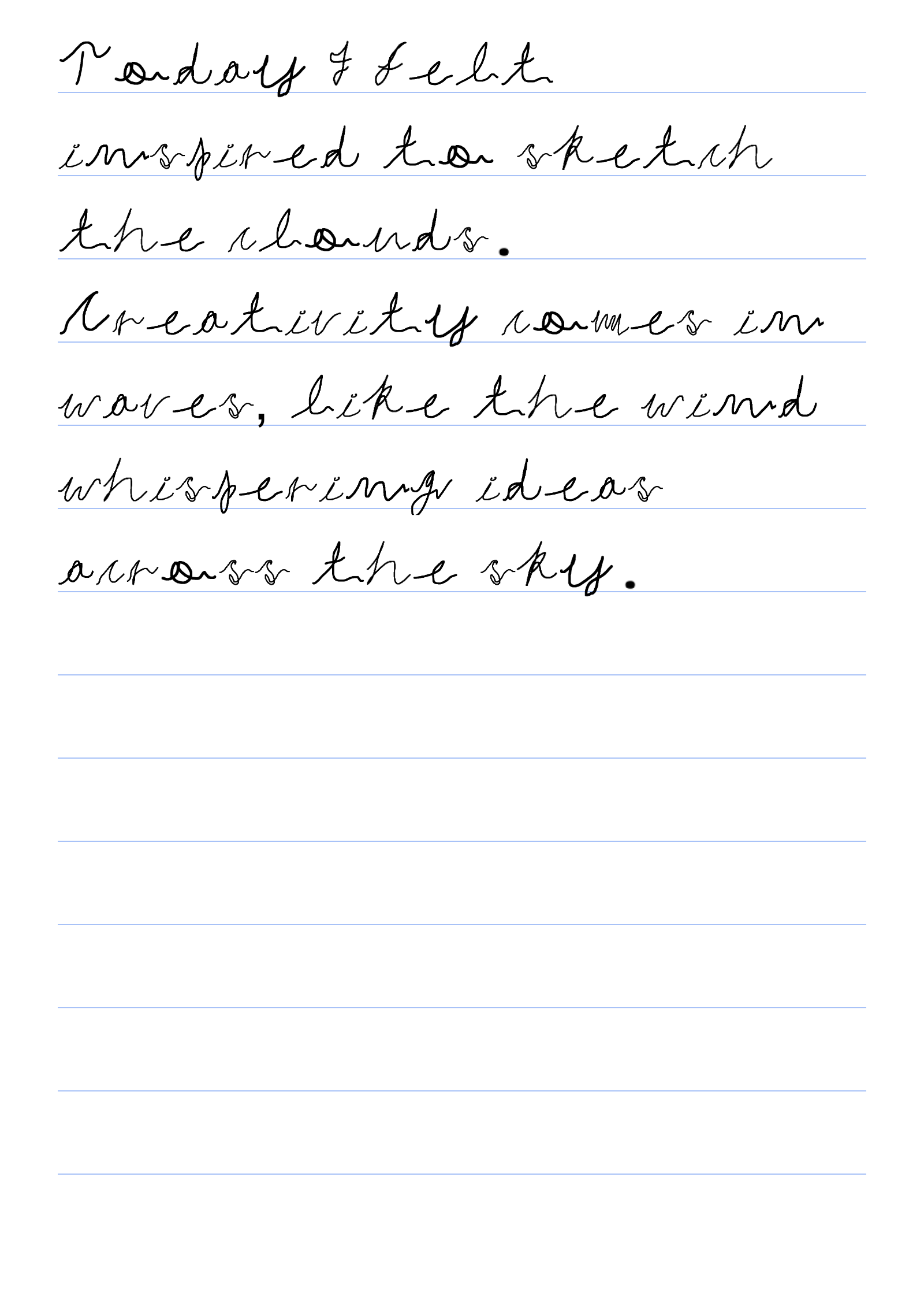
Only your ink shows
On a custom background, ScribbleSync renders just the pen marks, everything around the letters is transparent. So your notebook lines and form fields show through underneath, which is what makes it look like it was always there. Want the writing on its own? Export a transparent PNG and use it anywhere.
No printer, no scanner
It all happens on screen, upload, position, download. Nothing to print before you start, nothing to scan when you finish. If you need paper at the end, print the file then. Most of the time the digital image is all you need.
Questions people ask
- Can I upload a photo of my notebook and write on it?
- Yes. Sign in, click Add your notebook page, and upload any image. Your handwriting drops on top as a layer you can move, resize, and rotate.
- Can I fill out a form in my own handwriting?
- Yes. Upload the form, type each answer, drag it to the right field, repeat. Download one image that looks hand-filled.
- What if the page is curved or the photo's crooked?
- Use the rotate buttons to tilt your handwriting a few degrees until it lines up. Nudge it in small steps.
- Which image types work as a background?
- JPEG, PNG, and WebP. Only have a PDF? Screenshot the page and upload that.
- Does the download include my background?
- Yes. It's one combined image, background and handwriting merged, exactly as you see it on screen.
- Do I need an account?
- Yes, uploading a custom background needs a free account. It also saves your drawn letters so you never redraw them.
- Can I write on lined or graph paper online?
- Yes. Upload an image of lined paper, graph paper, or any background, and ScribbleSync places your handwriting on top.
- Can I fill a PDF form with my handwriting?
- Yes. Screenshot the PDF page, upload it as the background, type each answer, and position it over the right field.
- Does my handwriting cover the lines on the page?
- No. Only your ink is drawn, so the notebook lines, fields, and background details stay visible underneath.
Start with a page you already have
Draw your letters, upload your page, place your handwriting where it belongs. No printing, no scanning.